Get the most out of AI. Every Sunday I share one of the AI setups I use, explained simply with easy-to-follow tutorials. Free.
Share
Everyone can tell you used AI
Published 20 days ago • 3 min read
THE GROWTH TOOLKIT
Hey Reader,
Last week we taught AI who you are. Now let's get it writing like you!
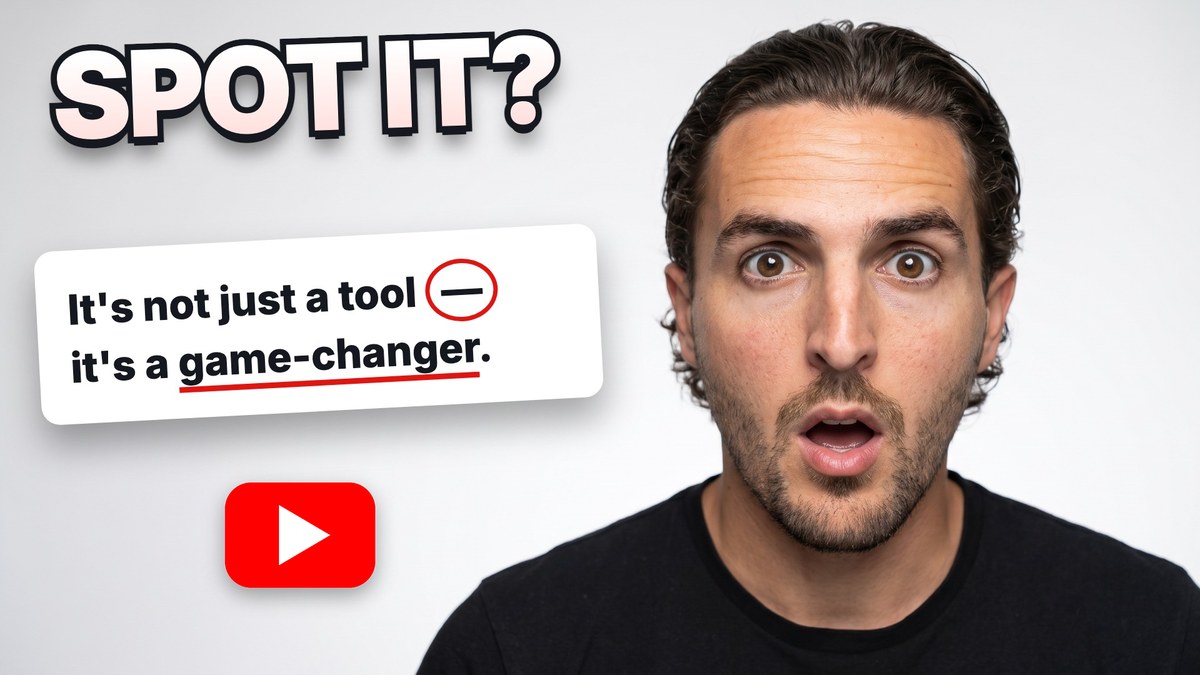
You can spot AI writing a mile off!!! There'll be an em dash in almost every paragraph, or sentences like "it's not just a tool, it's a game-changer", or it'll talk about your industry being an "ever-evolving landscape" 😬 🤢 If you're like me, the second you see it, you switch off and go elsewhere!
On this subject, LinkedIn recently added a button, labelled "Seems like AI slop". Posts where people have marked them as slop have received 40% fewer views.
I made a full video on this, going from a 2-minute prompt anyone can use up to the setup I use every working day:
Click to watch on YouTube
The video is 15 minutes long, so if you're strapped for time, here are the most important parts worth jumping to:
And here are all three prompts from the video so you can copy them straight away -
Prompt 1: find my patterns
Find 5 to 10 pieces of writing that are 100% you: so, old LinkedIn posts, emails, blog posts. Anything from before ChatGPT came out at the end of 2022 is perfect, because you know there's definitely no AI in it! Paste them in under this:
Below are some pieces of writing I wrote myself. Don't write anything new yet.
Study them and list the patterns in how I write: how I open, how long my sentences are, words and phrases I use a lot, my punctuation habits, how I end, my tone, and anything I never do.
Then write it all up as a "Voice profile" I can copy and reuse: one short paragraph describing my voice, a bullet list of rules, and 3 example sentences in my style. Use English [UK/US - change based on what you'd prefer].
[PASTE YOUR WRITING HERE]
Save the voice profile it gives you into a note or simple text file.
Then create a starter don'ts list
Telling AI what not to do matters just as much as telling it what to do, because the tell-tale signs are the bits folk like me notice. Here's a start, but feel free to add your own:
No em dashes or en dashes
No "it's not X, it's Y"
No "delve", "landscape", "elevate", "seamless", "game-changer", "unlock"
No "Here's the thing" or "Let that sink in"
No dramatic one-line endings
Prompt 2: rewrite it like me
Next time AI writes something for you, paste it in with this:
Here's my voice profile and my don'ts list. Rewrite the text below so it sounds like me.
Follow my patterns, break none of the don'ts, keep every fact, and don't add anything I didn't say.
VOICE PROFILE:
[PASTE]
DON'TS:
[PASTE]
TEXT:
[PASTE]
Here's where last week's email comes in. Paste your voice profile and don'ts into the same instructions box as before (Settings, then Personalisation in ChatGPT, or Settings, then Account in Claude), and you won't need prompt 2 at all, because every chat already knows how you write.
Prompt 3: learn from my edits
This is the one that makes it better over time. When you rewrite an AI draft before sending it, show it what you changed:
Here's what you wrote and here's what I sent after editing it. List what I changed and why, then update my voice profile with any new rules.
YOUR DRAFT:
[PASTE]
WHAT I SENT:
[PASTE]
A draft of one of my LinkedIn posts said "3 years ago I made a small decision that's quietly saved me a few hundred quid since". What I posted was "3 years ago I made a decision that's saved me quid since". That edit is now a rule every AI I use follows.
All of this gets you a better first draft. It doesn't replace you, so read it, change it and put your own thinking in. That's the bit people come to you for.
Your job this week
Pick the level that suits you.
Level 1: run prompt 1 on 5 to 10 bits of your own writing and save the voice profile it gives you.
Level 2: add your don'ts and use prompt 2 to rewrite one thing AI wrote for you.
Level 3: paste your voice profile and don'ts into your instructions from last week, then use prompt 3 the next time you edit a draft.
ISSUE 5 · SUNDAY 1 NOVEMBER I now do most of my work from my phone 3 ways to do it, for Claude and ChatGPT users Mike McDonnell The Growth Toolkit newsletter Hey Reader, Last week we got AI writing just like you, without it sounding like AI. This week, let's get it doing long-running tasks for you while you're nowhere near your desk! 📱😍 Of everything I've set up with AI, this has by far given me the most freedom in life. "Traditional" office work sitting at your desk can thankfully now be a...
THE GROWTH TOOLKIT Hey Reader, How many times have you typed "keep it short" or "I'm in the UK" into ChatGPT? Every new chat starts from scratch. It doesn't know what you do for work, who's in your family or that you can't stand a wall of bullet points, so you end up explaining yourself again.. and again. This week we fix that. It's all in the settings, there's nothing to install and it works on your phone too. When I started out I did this in ChatGPT, with a few lines about me in the custom...
THE GROWTH TOOLKIT Hey Reader, Last week we got you set up, ready to get the most out of AI. A few of you replied, including my dad, asking for a bit more clarity on step 3: you couldn't find anywhere to pick a folder. Each of those replies came from ChatGPT/Codex users. That one's on me, so apologies. I skipped over ChatGPT and didn't give you the link to download the desktop app. Here it is: chatgpt.com/download (Mac and Windows). Just like with Claude, you need the desktop app, the one you...