Get the most out of AI. Every Sunday I share one of the AI setups I use, explained simply with easy-to-follow tutorials. Free.
Share
Here's how I get AI to perform tasks for me
Published 24 days ago • 8 min read
THE GROWTH TOOLKIT
Hey Reader,
Last week we got you set up, ready to get the most out of AI. A few of you replied, including my dad, asking for a bit more clarity on step 3: you couldn't find anywhere to pick a folder. Each of those replies came from ChatGPT/Codex users.
That one's on me, so apologies. I skipped over ChatGPT and didn't give you the link to download the desktop app. Here it is: chatgpt.com/download (Mac and Windows).
Just like with Claude, you need the desktop app, the one you download and install on your Mac or PC. The desktop app can see the files and folders on your computer.
The website and phone apps are great for questions, but they can't see your files or use your computer. If you're hunting for the folder button and it isn't there, that's almost always why.
Here's where it lives again, step by step.
In Claude
Open the Claude desktop app (claude.com/download if you haven't got it yet).
Click the code icon top left to open Claude Code.
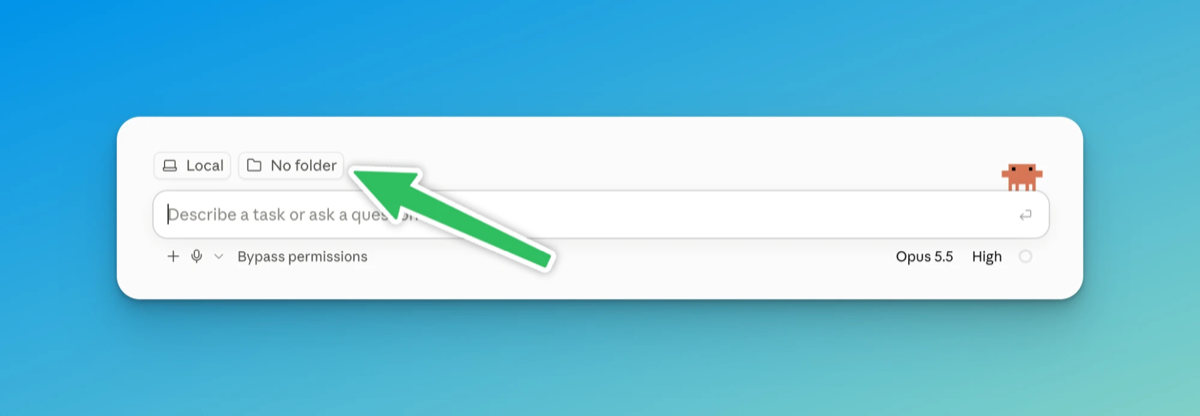
Check it says Local, then click "No folder" next to it and pick your AI folder.
In Claude Code, click "No folder" to choose your AI folder
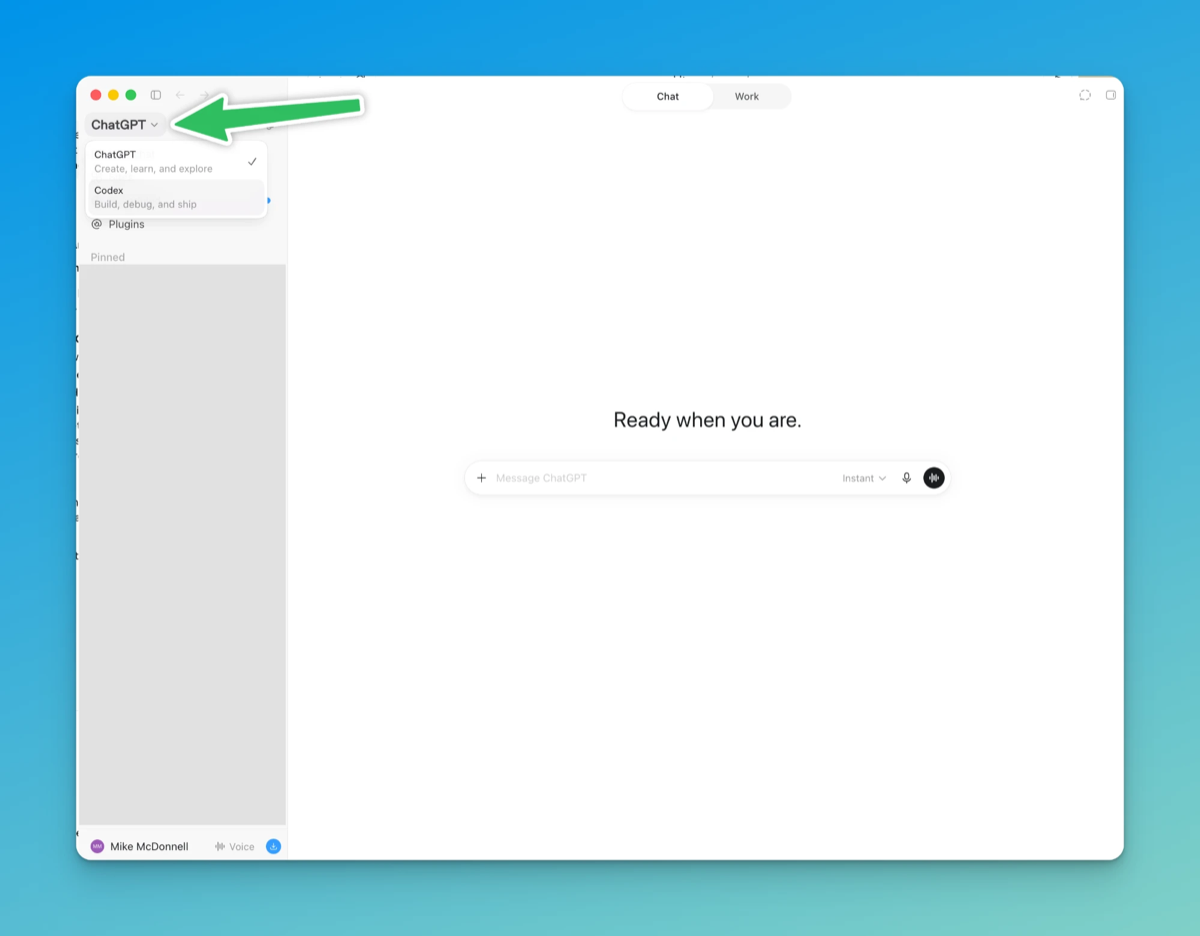
Top left, click where it says ChatGPT and switch to Codex.
Click "Choose project" and pick your AI folder.
In ChatGPT, switch to Codex top left
In Codex the folder button is called "Choose project":
In Codex, click "Choose project" and select the folder you'd like to work in
Still stuck? The full setup with screenshots is at mikemcdonnell.co.uk/set-up-ai-desktop-apps. Or hit reply, tell me what you can see on your screen and I'll talk you through it.
Why a folder?
Think of the folder as the AI's desk. Whatever you put on the desk, it can see and work with: photos, PDFs, a spreadsheet, last month's invoices. Whatever it makes, it leaves on the desk for you, so the listing or the cropped photos are still sitting there when you come back tomorrow.
My favourite part is that the AI can use the folder as long-term memory. Think of it as post-it notes on the AI's desk. As it works through a project for you, it leaves itself notes, so even after you close the session it can pick up where it left off by reading them.
It also means the AI stays at its desk. It can't go rooting through the rest of your computer, which is exactly what you want while you're still getting used to it.
So what is "agentic AI"?
You'll hear this phrase everywhere at the moment, so here's the simple version.
A chatbot answers you. You ask it how to write a Marketplace listing, it tells you, and then you go and do it yourself.
An agent carries out tasks. You give it the goal ("sell this"), and it works out the steps, uses the tools it's been given (your folder, your browser), checks its own work and comes back to you when it needs a decision. Same brain as the chatbot.. last week I called it a brain with hands, and this is the hands bit 🙌
Watch me do it
I filmed the whole thing start to finish. Four photos of a LEGO plant pot my niece gave me and one prompt. AI checked what it sells for on eBay and Vinted, asked me a few questions about condition and postage, wrote the listing and saved it on Facebook Marketplace as a draft with all four photos uploaded.
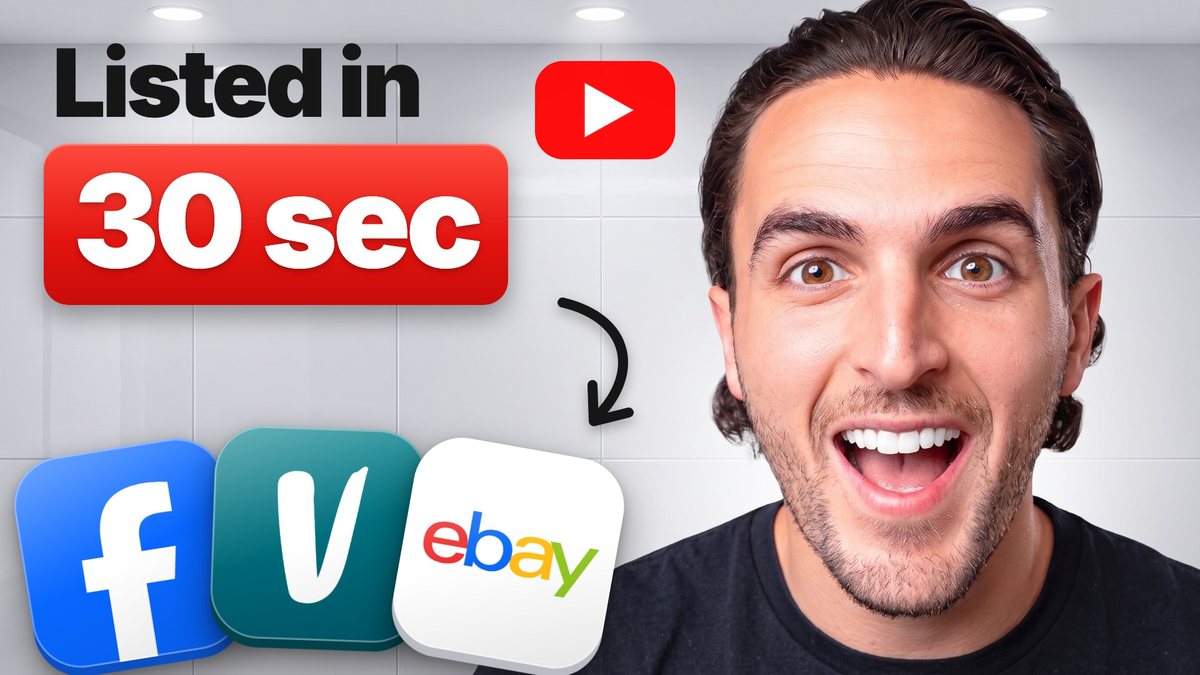
Click to watch on YouTube
It's 16 minutes, so here are the bits worth jumping to:
It hit a snag too. The browser wouldn't take the photos the first time, and at 13:36 you'll see how we got round it.
Steal my prompt
Here's the one from the video, tidied up:
In this folder there are photos of [the item] that I want to sell on Facebook Marketplace. Research what it sells for used, and price it a little below the average because I want it sold quickly. Ask me any questions you need to list it properly. Fill in the listing in the browser and leave it as a draft so I can check it before it goes live.
Nearly every prompt I write for this sort of job has the same bits in it: what I want done, where the stuff is, "ask me any questions", and where to stop. That shape works way beyond selling.
Not selling anything?
Some of you might be thinking, well I don't want to sell anything! What else can I use this for? Well... Loads! Here are five more tasks, starting with a two-minute test and finishing with one that'll do a big chunk of a business owner's week. Every prompt has the same four parts as the selling one, so once you've done a couple you'll be well away to writing your own.
Fill in the bits in the [square brackets] before you send it.
For everyday life
1. Tidy a messy folder (the two-minute test)
If you've not tried any of this yet, start here. Make a new folder, drag 20 or so files out of your Downloads into it (photos, PDFs, whatever's lurking in there) and pick it as your AI folder.
This folder is a mess. Sort everything into sub-folders that make sense, and rename each file so I can tell what it is without opening it. Show me your plan before you move anything, and ask me if you're not sure where something goes.
The "show me your plan" line means you see what it's going to do before it touches a single file.
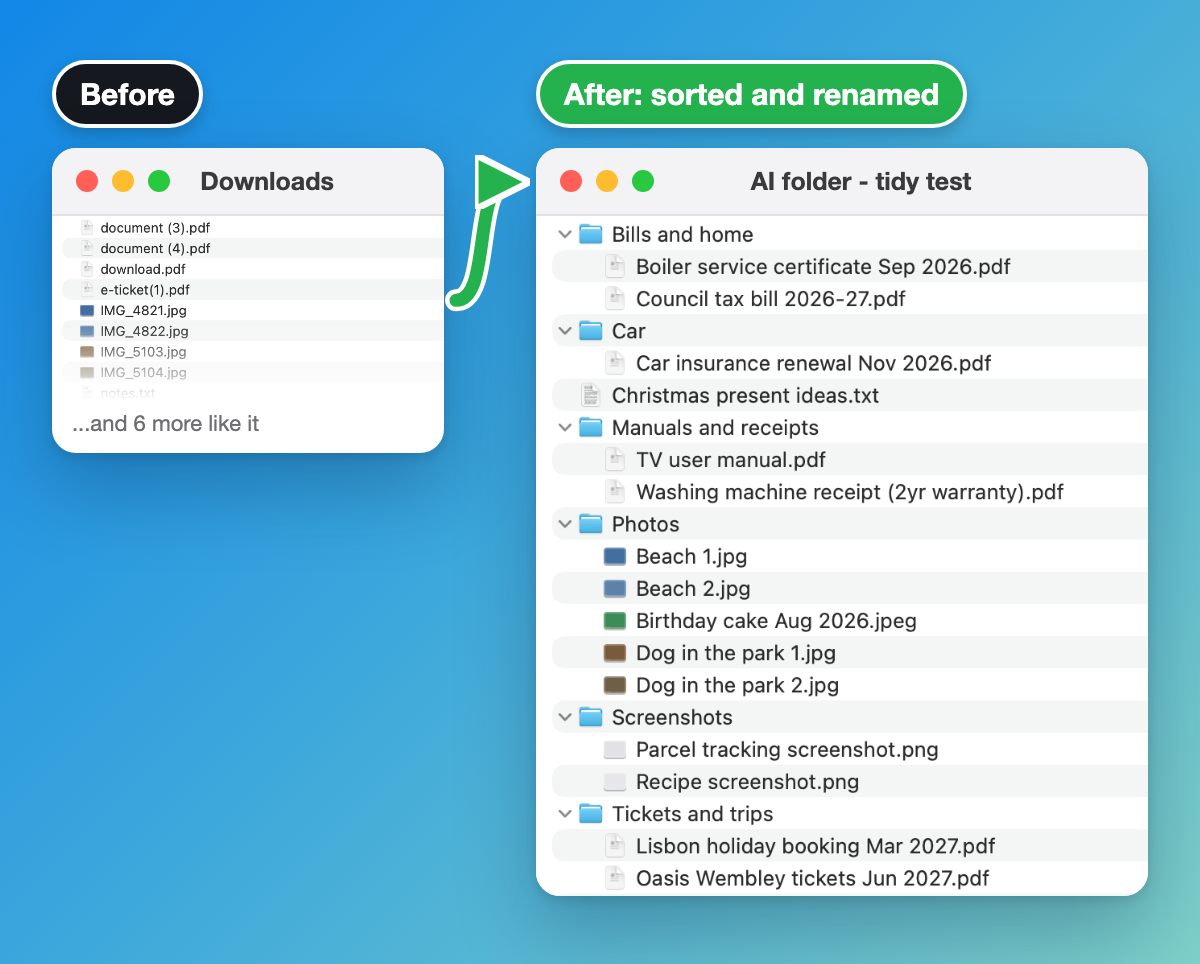
Before and after: 15 random downloads sorted and renamed
It works the other way round too. Ask it to make something from scratch:
I'm moving house in [month]. In this folder, set up a sub-folder for each part of the move (removals, utilities, change of address, packing) with a checklist inside each one. Ask me anything you need to know about the move first.
2. Find the subscriptions you forgot about
Download your last three months of bank statements as PDFs from your banking app and put them in the folder. Don't give it your bank login, the PDFs are all it needs.
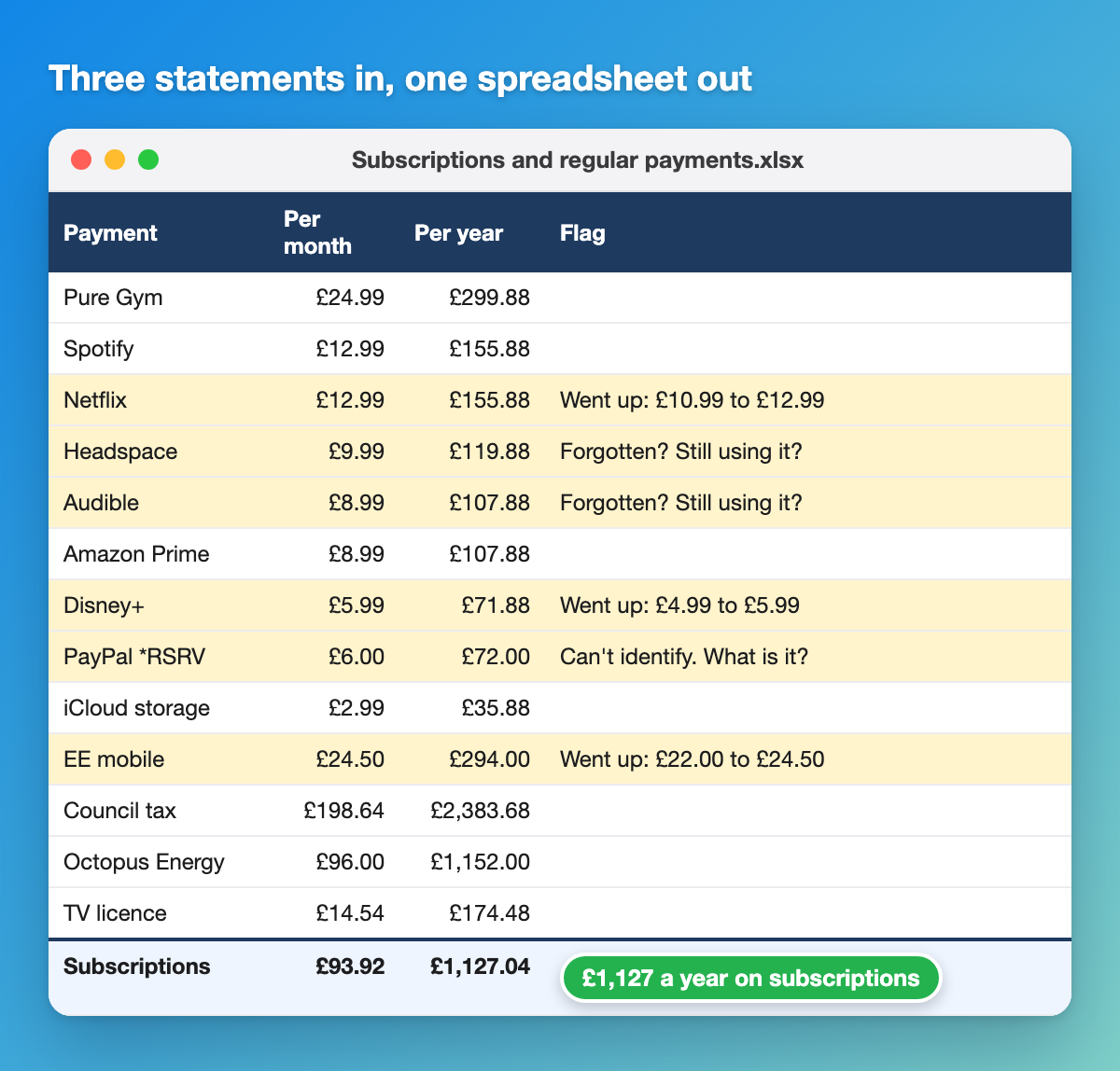
In this folder are three months of my bank statements. Find every subscription and regular payment and put them in a spreadsheet with what each one costs a month and a year. Flag anything that's gone up in price and anything I might have forgotten about. Ask me about any payments you can't identify. Save the spreadsheet in this folder and tell me the yearly total.
Made-up statements, real result: price rises and forgotten ones flagged
Seeing the yearly total for the first time is a bit of a shock 😬
For work
3. Do your expense claim
Quick check first: some companies have rules about putting work documents into AI tools, so make sure yours is OK with it.
Put photos of your receipts in the folder, plus a blank copy of your company's expense form (or a screenshot of it if it's an online one).
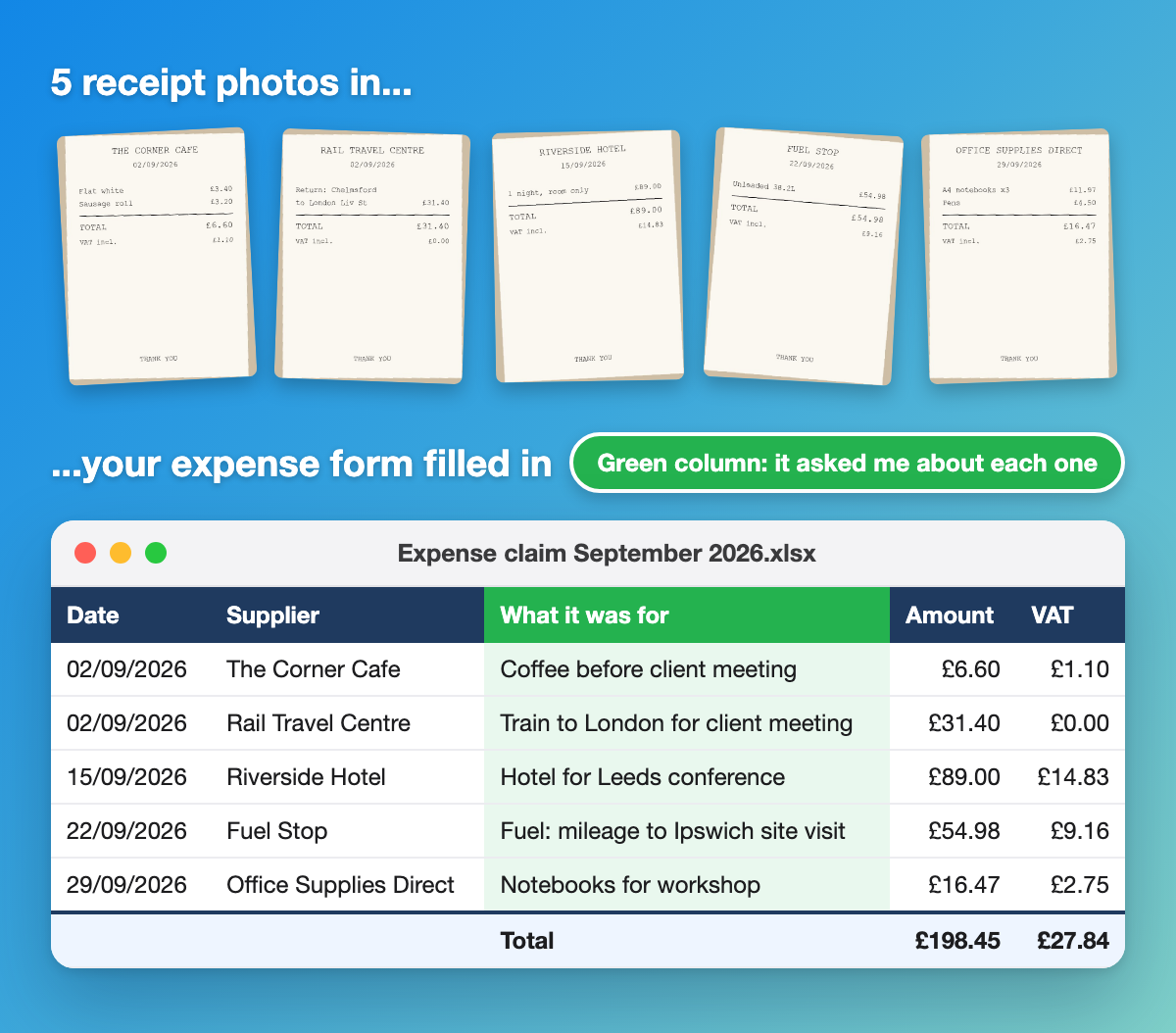
In this folder are photos of my work receipts from [month] and a blank copy of my company's expense form. Fill in the form with one line per receipt: the date, who it was from, what it was for, the amount and the VAT. Ask me about anything you can't read or can't work out the reason for. Save it as a new file and leave the original form as it is.
Five receipts in, expense claim out
For business owners
4. Check what your competitors charge
This one uses the browser, same as the Marketplace listing.
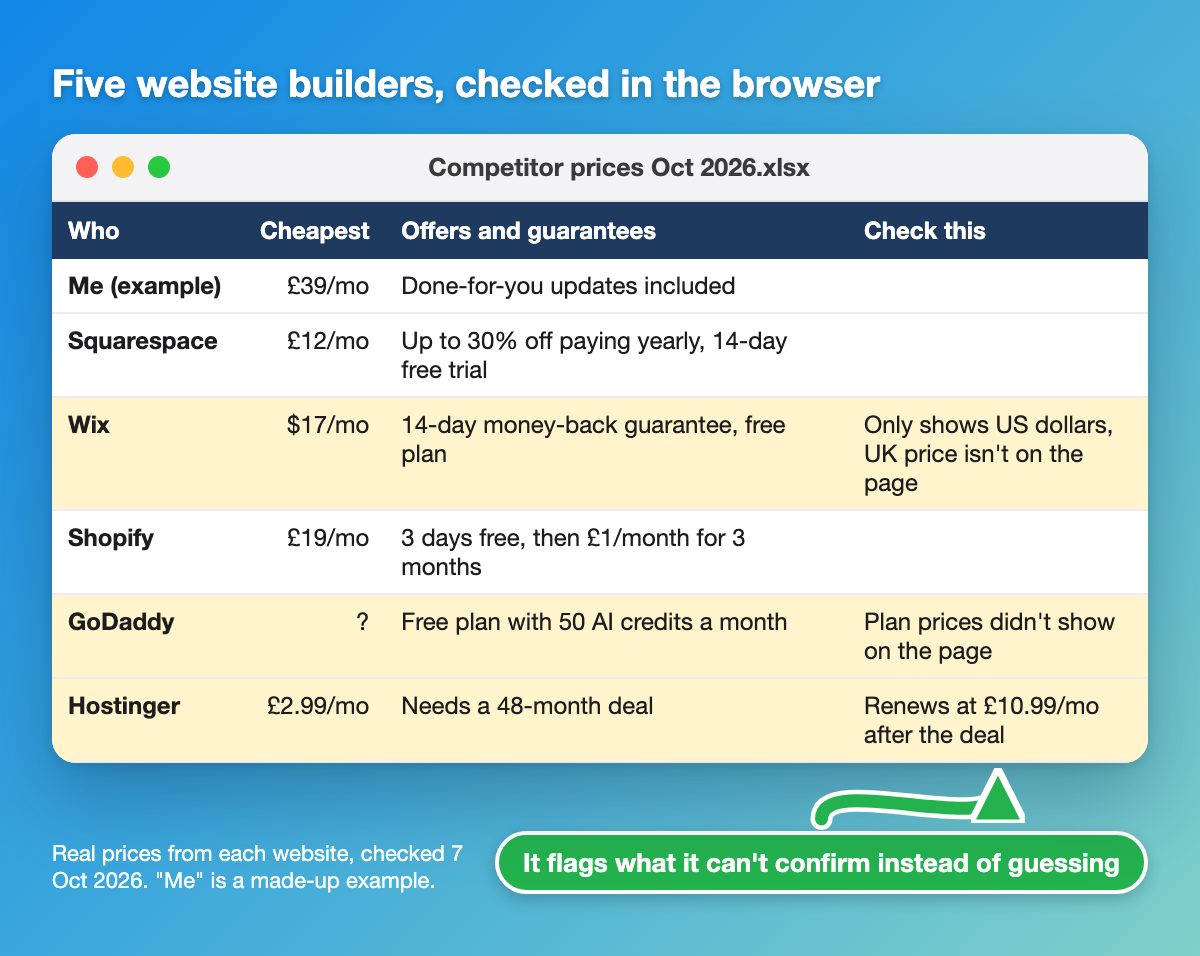
Here are five of my competitors: [names or websites]. Go to each website and find what they charge for [your product or service], plus any offers, packages or guarantees they mention. Put it all in a spreadsheet in this folder next to my prices: [your prices]. If a site's pricing isn't clear, tell me rather than guessing. Don't fill in any contact forms or sign up for anything.
If a competitor hides their prices behind a "get a quote" form, that's worth knowing too.
Real prices from five website builders, checked in the browser
5. Find out why competitors beat you on Google, then fix it
The most advanced one, and it's close to how we work on client websites at Glide. It's done in two goes, with you checking in the middle.
First, research only:
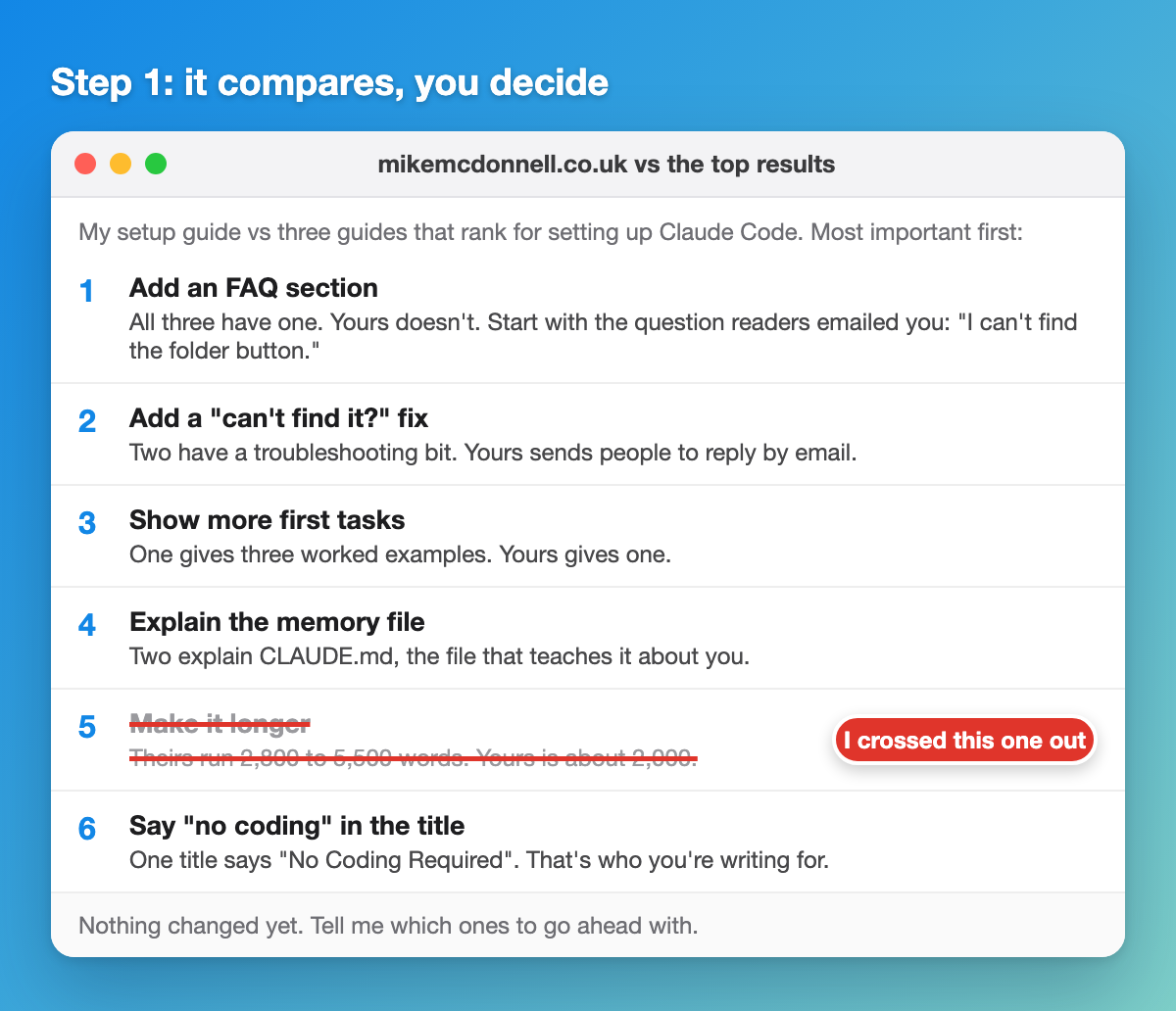
I want my website to show up on Google for "[the search you want to be found for]". My website is [your web address]. Search for that on Google, look at the top five results and compare their pages with mine: what they cover that I don't, the questions they answer, their page titles and headings, and how much they say. Come back with a list of the differences and what you'd change on my page, most important first. Don't change anything yet.
I ran this on my own setup guide. Number 5 got crossed out
Read the list and cross out anything you don't agree with. You know your customers better than it does. Then:
Go ahead with points [1, 3 and 4]. [My website's files are in this folder / My website is on WordPress and I'm logged in in the browser.] Make the changes and save them as a draft, not live. Then show me everything you changed so I can check it before it goes live.
If your website's files are in the folder, make a copy of the folder before you start. If it's on WordPress, Wix or Shopify, log in yourself, same rule as the Marketplace one.
Same four bits every time: what you want done, where the stuff is, ask me questions, and where to stop. Once you've got that, you'll start spotting jobs for it all over the place.
Your job this week
Pick the level that suits you.
Level 1: if you didn't get to it last week, do last week's task. Photos in the folder, ask it to write the listing. No browser needed.
Level 2: use the prompt above for one item on one site and let it save a draft.
Level 3: the same item on Facebook, Vinted and eBay. This is where it starts saving you real time.
Not selling anything? Pick one of the five above. New to this? Start with number 1, then work your way down.
When it needs a website, it'll open a browser. If a site asks you to log in, log in yourself and then tell it to carry on. Never type your password into the chat.
Whatever level you go for, leave it as a draft and check it before anything goes live. You stay in charge of the publish button.
I'll show you how to teach AI all about you, so you don't have to keep reminding it how you like things done every time you start a new session.
Quick favour before you go
I want to pitch these at the right level for you, and one tap below tells me if I've got it right. Worth mentioning, answering below won't open another window or ask you to sign into anything!
ISSUE 5 · SUNDAY 1 NOVEMBER I now do most of my work from my phone 3 ways to do it, for Claude and ChatGPT users Mike McDonnell The Growth Toolkit newsletter Hey Reader, Last week we got AI writing just like you, without it sounding like AI. This week, let's get it doing long-running tasks for you while you're nowhere near your desk! 📱😍 Of everything I've set up with AI, this has by far given me the most freedom in life. "Traditional" office work sitting at your desk can thankfully now be a...
THE GROWTH TOOLKIT Hey Reader, Last week we taught AI who you are. Now let's get it writing like you! You can spot AI writing a mile off!!! There'll be an em dash in almost every paragraph, or sentences like "it's not just a tool, it's a game-changer", or it'll talk about your industry being an "ever-evolving landscape" 😬 🤢If you're like me, the second you see it, you switch off and go elsewhere! On this subject, LinkedIn recently added a button, labelled "Seems like AI slop". Posts where...
THE GROWTH TOOLKIT Hey Reader, How many times have you typed "keep it short" or "I'm in the UK" into ChatGPT? Every new chat starts from scratch. It doesn't know what you do for work, who's in your family or that you can't stand a wall of bullet points, so you end up explaining yourself again.. and again. This week we fix that. It's all in the settings, there's nothing to install and it works on your phone too. When I started out I did this in ChatGPT, with a few lines about me in the custom...